Progress and leaderboard
Use Overview and Progress to see how you are doing in the class. Some classes also show a leaderboard if your teacher has enabled it.
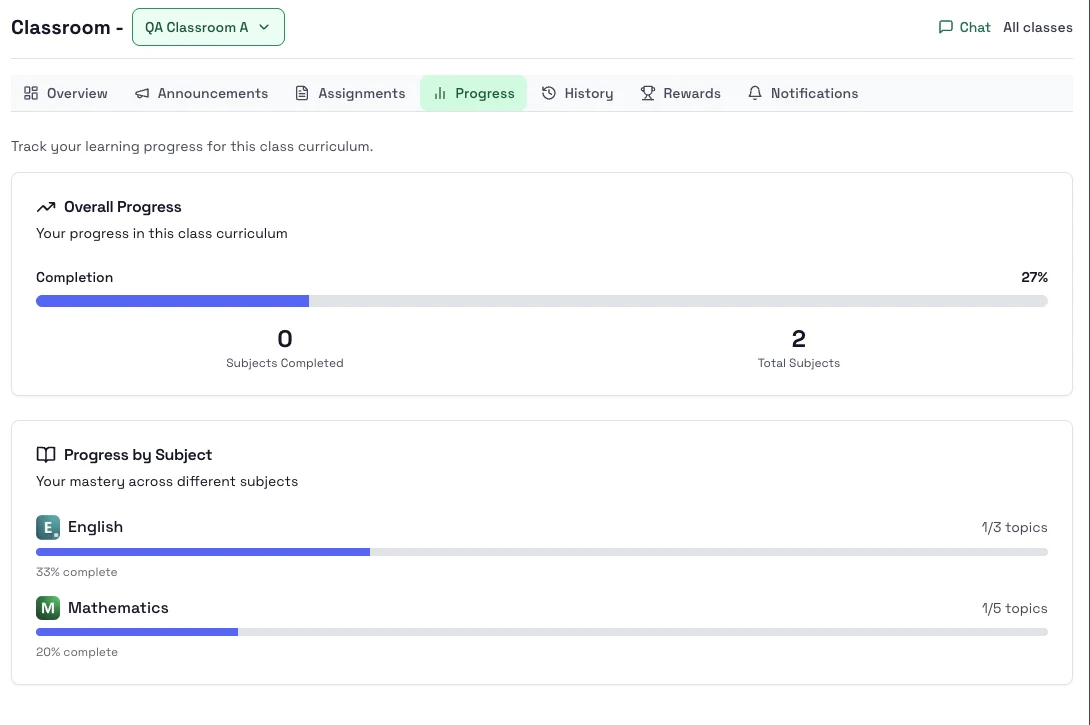
What you can see
- Overall class progress for your current curriculum.
- Pending work and graded work.
- Subject progress for the class.
- Your class leaderboard position when the teacher has that feature turned on.
Steps
- Open the class and start on Overview.
- Check the summary cards for pending work, graded work, and next due date.
- Open Progress when you want a more detailed view.
- If the class shows a leaderboard, use it as a class-specific progress signal.
Notes
- Leaderboards are optional and may not appear in every class.
- Progress here is class-specific, not your full Study history.
- Announcements and assignments on the overview can help explain recent changes in progress.
Next step
- Return to Assignments to act on what you saw.