Announcements and updates
Use announcements for class-wide reminders, celebrations, and operational updates. Use reports when you need a parent-facing progress summary instead of a class-wide post.
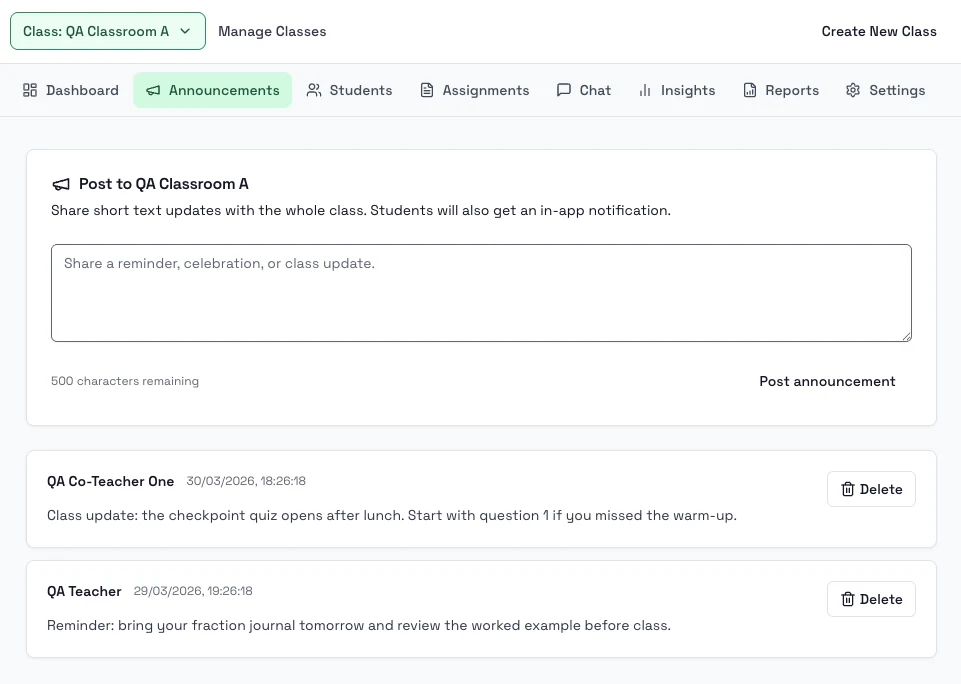
Steps
- Open a class and go to Announcements.
- Write a short update such as a reminder, celebration, schedule change, or class notice.
- Post the announcement so it appears in the class feed and triggers an in-app notification for students.
- Students read these updates from Classes: Announcements and notifications.
- Open Reports and analytics when the update should be a parent-facing summary for selected students instead of a whole-class note.
Notes
- Announcements are class-wide and are best for short operational updates.
- Reports are better for weekly digest, teacher note, or progress-summary style communication with linked parents.
- Students can read the latest announcements from the class dashboard and from the dedicated announcements page for that class.