Class setup and students
Use these flows to create the class, define the cohort clearly, bring students in, and manage invitations, join requests, rosters, and caregivers from one place.
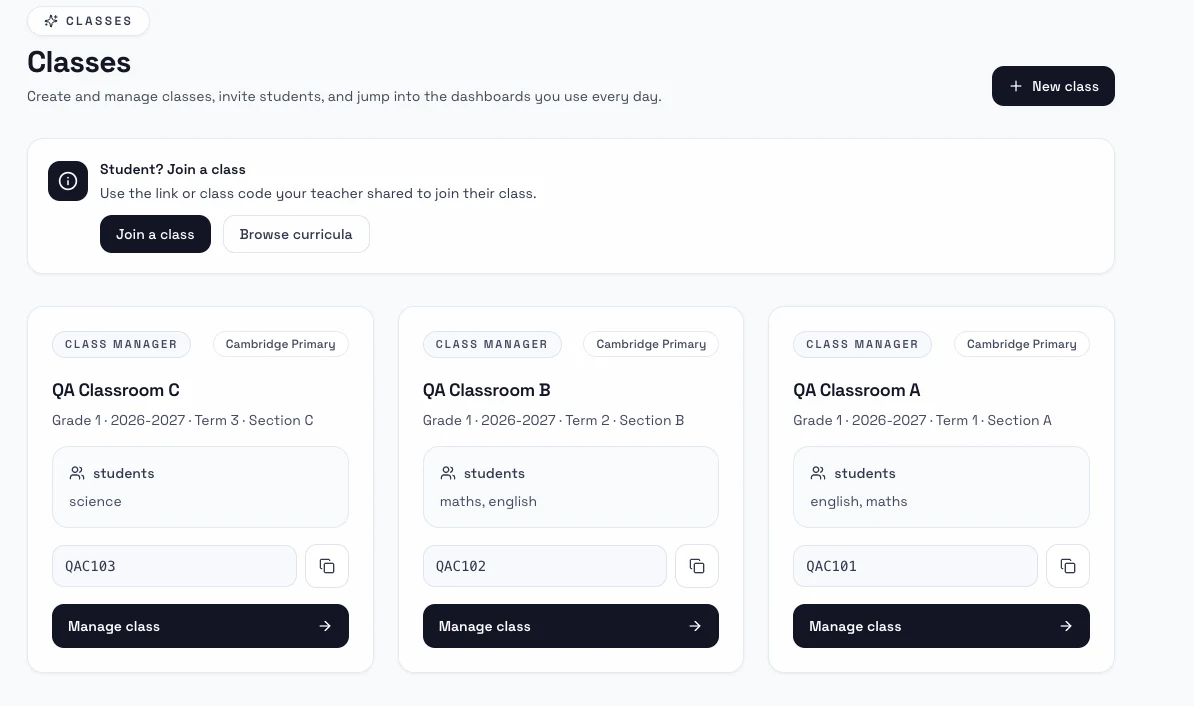
Steps
- Open My Classes.
- Select Create Class and enter the class name, grade, academic year, term, section, curriculum, and subjects.
- Review the cohort preview so the class label matches how you group learners.
- Open the class once it is created, then go to the students page to copy the class code, review requests, or send invitations.
- Use Import roster when you want to upload a CSV or pull a Google Classroom roster instead of inviting students one by one.
- Review the import preview, then send invitations or approve, reject, resend, cancel, and remove entries as needed.
Notes
- The student roster page combines join code sharing, requests, invitations, roster import, and caregiver-link actions.
- Invitations can include more than one caregiver email for the same student.
- CSV roster import accepts
student_email,student_name, andcaregiver_emails, and the Google Classroom option lets you preview a course roster before importing it. - Students join and open the class from Classes: Join and open a class.